Your library
Everything about the games you've added: starting them, editing them, romhacks and DLC, how they get grouped in Steam, and fixing things that have drifted out of sync.
Back to the README.
Starting a game
Press play on any row in Added games. The panel closes and the game starts.
It goes through Steam instead of running the emulator directly, so gamescope, Steam Input and the overlay all behave exactly like they do when you launch from your library.
Multi-disc game? It's one entry, and most of them swap discs on their own. If yours doesn't, press Select + Start in game and look for Change Disc. More on multi-disc games.
Game icons
Every game you add gets an icon — the little picture next to its name in your library list. If the artwork lookup found one on SteamGridDB, you get that. Otherwise you get a plain gamepad tile.
Want real icons instead of the plain ones?
- Go to the Library tab.
- Press Get real icons for these games.
It looks each game up in turn, so give it a moment per game. The button only appears while at least one game is still on the plain tile.
For a single game, open its editor and press Choose the right game instead.
The game's page in Steam
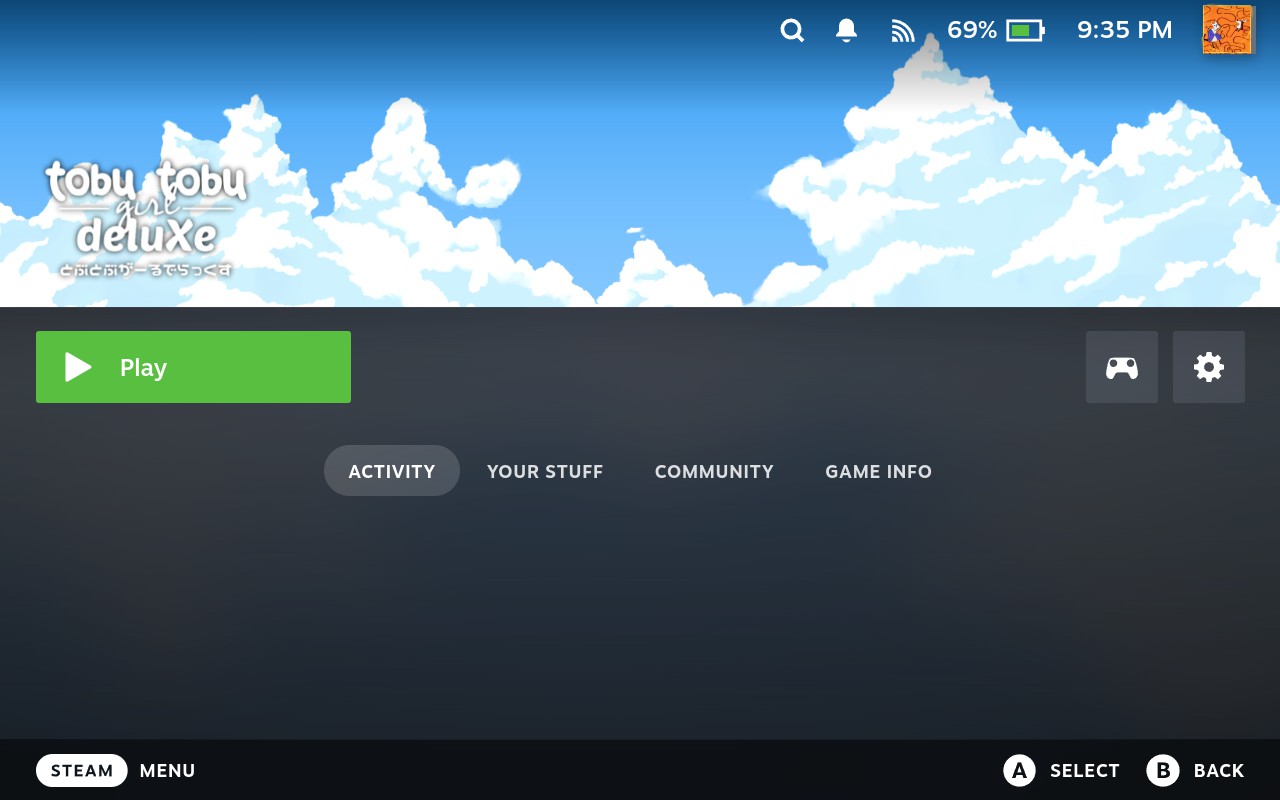
Press the ⓘ button next to play. That opens Steam's own page for the game, where you'll find the artwork, your play time, and the per-game controller and performance settings. The panel closes on the way so nothing sits on top of it.
Starting a game while another one is running
Steam normally warns you before launching a second game. It won't for games added here, because those are non-Steam shortcuts. So the plugin does the warning itself.
Start one of these while another game is running and you'll see a quick flicker back to where you were, then:
You are currently running Some Game. It is not recommended to run multiple games simultaneously as it can impact performance. How would you like to proceed?
You get Steam's own three choices: close the running game and launch this one, launch anyway, or cancel. Nothing starts until you pick.
Note: the flicker is normal. Nothing can stop a launch once Steam has started it, so the game's launcher script is what refuses. That trip back to the library is it deciding not to continue.
If the check itself goes wrong, the game just launches.
My game won't start and nothing happens
Shortcuts keep working after the things behind them are gone. Usually that's an SD card that didn't mount, or an emulator you uninstalled. The launcher checks both before it starts anything and tells you which one is missing:
- The game file is not there. Reinsert your SD card and try again. If the file is gone for good, remove the game and add it again.
- The emulator is not installed. The message names it. Open the Emulators tab and install it — your saves and settings are still there. For a RetroArch game it names the core, since that's the part that goes missing.
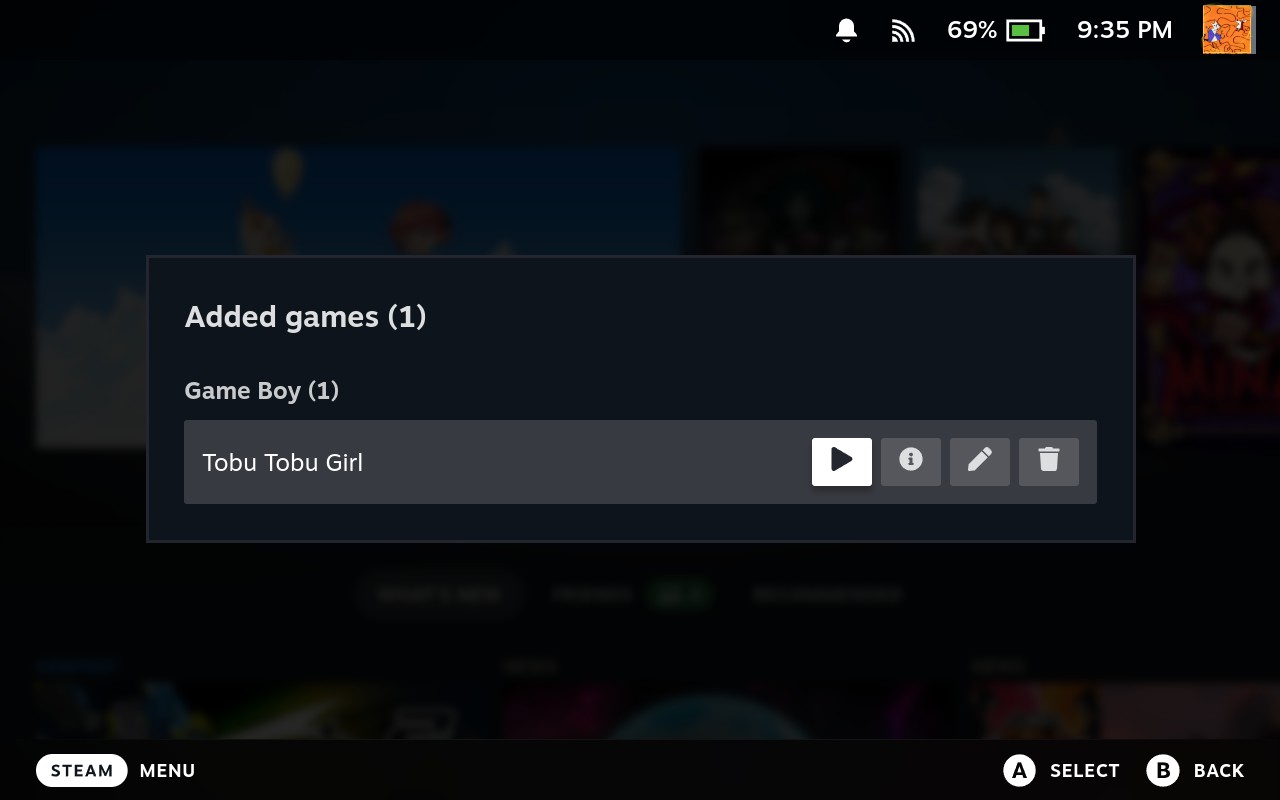
Every row shows the game's artwork, or a plain controller icon if none was found, so the titles stay lined up.
Where the game's name comes from
Adding a game looks the name up instead of trusting the filename. In order:
- libretro, if it recognises the ROM.
- SteamGridDB, if it identified the game while grabbing artwork.
- The filename, tidied up. That's how
Some Game, The (USA) (Rev 1)
   Decrypted
becomes Some Game, The Decrypted.
When the name is a guess, the panel tells you which of the three produced it, and you can edit it right there.
Note: give it a glance before you press Add. SteamGridDB sometimes answers with a different game in the same series, and a wrong name follows a game around in a way a wrong picture doesn't.
Grouped, or one tab per system
By default your games are grouped under their system in one long scroll. Want a tab for each system instead? Go to Settings → Library → One tab per system. Page between them with L1 and R1.
Which one you want depends on your library. A few games across lots of systems read better grouped. Lots of games on a few systems read better in tabs, where a system is one bumper press away. The tab you were last on is remembered until the plugin restarts.
Editing a game
Press the pencil on any row in Added games. Your game keeps its Steam entry, so your playtime and its place in a collection survive.
You can also get there from the game's own page in Big Picture: open the cog menu and pick DeckyEmu → Edit.
The editor has three tabs, switched with the bumpers:
| Tab | What's in it |
|---|---|
| Game | Name, artwork, ROM file |
| Emulator | Core or emulator, system, launch options, fixes |
| Add-ons | ROM hacks, updates and DLC |
Save, Save and test and Close sit under all three. Save covers every tab except Add-ons, whose changes apply right away.
Here's what each field does:
- Name — renaming moves the launcher, since its filename includes the title.
- ROM file — point the entry at a moved file, an SD card, or a better dump. If the core can't read it, it's refused.
- ROM hacks — patch files. RetroArch games only. More below.
- Updates and DLC — Switch games on Ryujinx. More below.
- Core or emulator — changing this can change the system, so the platform label and the collection follow along.
- System — for cores that cover more than one, which is most of them. It decides the shelf your game sits on, the folder its ROM goes in, and where its cover comes from. Change it to move a game off the wrong shelf, then run Look up name and artwork again — the old cover came from the old system.
- Name and artwork — press Choose the right game when the automatic match got it wrong. It sets the name as well as the cover, unless you've written your own name. Artwork lands right away; a name change waits for Save. This also sets the game's icon.
- Launch options — override the global fullscreen or notification setting for one game, and add extra arguments. They're added on the end, because several argument templates finish with the ROM path. Leave an override on follow the global setting and it still picks up later changes.
- Save and test — launches the game through Steam. It saves first, since the launcher on disk is what Steam runs.
ROM hacks and translations
Romhacks come as a patch — a small .ips, .bps or .ups file that
describes the difference from the original ROM. Never as a ROM.
To install one:
- Send the patch to your Deck the same way you send a game.
- Press Install on its row in the transfer list.
- Pick which game it's for. Patches don't say, so you're asked. Your RetroArch games are listed, with the ones named in the patch's filename first.
Already added the game? Open it in the editor and press Install a patch. Either way the file comes out of your transfer folder.
Note: your ROM file is never changed. RetroArch applies patches while the game loads, from files sitting next to the ROM. The plugin keeps its own copy of every patch, which is what lets you switch one off without losing it.
Each patch on the list has a switch and a bin. The switch turns it on and off, the bin deletes it. Both happen right away — no saving.
You can have several patches on at once. The order on the list is the order RetroArch applies them, which decides who wins when two hacks change the same bytes. New patches go on the end.
Anything that isn't an IPS, BPS or UPS gets refused. That catches the two usual mistakes: picking the ROM instead of the patch, and a browser that renamed your download.
Two things this can't do:
- Other emulators don't get a list. This is RetroArch reading files as it loads a game. Nothing else here works that way.
- Disc games might ignore patches. RetroArch patches games it loads into memory, and disc images are usually read straight from the file. You'll get a warning rather than a refusal, because it depends on the core. Zipped ROMs are fine.
Put a patch next to a ROM yourself? It gets picked up the first time you open the editor.
Removing the game deletes its patches too — both the plugin's copies and the files next to your ROM.
Switch updates and DLC
Updates and DLC come as their own .nsp or .nsz files, and each one says
which game it belongs to. So there's nothing for you to pick.
Send one over and its row in the transfer list reads Update v2.0.2 for your game, with an Install button. Haven't added that game yet? Pressing Install tells you so.
Sending a game with its updates? Send them together, then pick the game in
the add panel. A row lists what it found alongside, and Add to Steam adds the
game and installs the rest with it. The button turns into a progress bar naming
each step. An .nsz gets unpacked first.
From the editor, press Install an update or DLC. Installing takes the file out of your transfer folder. Pick a file from anywhere else and it gets copied instead, so yours stays put.
The plugin reads the package to see what it is. An update for a different game, a DLC for a different game, or a whole game picked by mistake all get refused before anything moves. No keys needed for that.
A few things to know:
- The newest update wins. Keeping older ones does no harm, and deleting the newest puts the one before it back in charge.
- Every DLC is on. Each row has a bin to delete that file.
- Removing the game removes these too.
- Ryujinx only, for now. A game dumped with its update and DLC already merged into one file doesn't need any of this.
Setting variables for every launch
Drop a script in ~/deckyemu/env.d/*.sh and it gets read just before an
emulator starts, in name order.
It's there so another plugin — or a file you write yourself — can set an environment variable without touching a shortcut's launch options, which is the one field two plugins can't share.
Made a mistake in one? It costs you that file's variables, not the game.
For flatpak emulators, Vulkan layer variables (LSFGVK_*, MAKO_* and their
off switches) get carried into the sandbox too, which flatpak run won't do on
its own.
Collections
Your added games get filed into a Steam collection so you can actually find them
in Big Picture. It's called DeckyEmu unless you rename it.
One collection per system is on by default, so every system gets its own shelf. Turn it off and they all share one.
Pick how the shelves are named:
| Format | You get |
|---|---|
[{name}] {platform} (default) |
[DeckyEmu] SNES |
{platform} |
SNES |
{name}: {platform} |
DeckyEmu: SNES |
{name} · {platform} |
DeckyEmu · SNES |
{name} - {platform} |
DeckyEmu - SNES |
{platform} ({name}) |
SNES (DeckyEmu) |
{name}\n{platform} |
two lines — but Steam puts collection titles on one line, so expect a space |
Which system a game counts as comes from the System row on the add panel.
It starts on whatever the file says: a .md is a Mega Drive cartridge no matter
what else its core reads. When the file doesn't say — a .cue or an .iso names
a medium, not a system — you get the core's first system, and the row is there
for you to fix it before adding.
Note: games added before that row existed got their system from whichever system's cover art matched the filename first. If one of yours is on a shelf you didn't expect, edit it and change System.
Platform names are short by default — SNES, not Super Nintendo Entertainment
System, which is 46 characters of shelf header. Systems that aren't listed just
lose the manufacturer prefix (Acme - Wonder Machine → Wonder Machine).
Rename the collection or toggle per-platform naming and your existing games move too, not just the next one you add. Already have games? You keep whatever layout they were filed under, so updating never shuffles them. Old collections get deleted once they're empty, never while they still hold games you dragged in by hand.
Fixing entries that have drifted
Press Check for orphaned entries on the Library tab. It reports everything out of sync:
- A ROM or launcher that's gone.
- A record whose Steam shortcut you deleted.
- Launcher scripts nothing points at.
- Games left over from a previous install under a different plugin name.
It checks the other direction too, reading Steam's own shortcuts.vdf for
shortcuts the plugin doesn't have records for:
| Cannot start | The launcher script is gone, so the entry does nothing. Removing it is all you can do |
| Duplicate | A tracked game already runs this launcher, so it shows up twice in Steam. Remove it and you keep the tracked copy |
| Untracked | It still plays, but the plugin has no record of it, so you can't edit or remove it from here |
Note: ownership is decided by the executable being one of the plugin's launcher scripts, never by the name. Two shortcuts can share a title where one of them is a real Steam game.
Collections get checked three ways as well: games missing from their shelf, games still on a shelf they've left, and shelves left empty. A game recorded as filed might simply not be there, because the collection got deleted in Steam or filing it failed at the time.
Every fix asks first, and tells you exactly what it'll touch — games, shortcuts, files or collections, one to a line. The list rebuilds after each fix.
When anything turns up, the Quick Access panel says so and offers you the way through. You'd never spot this by looking at your library: an entry whose launcher was deleted looks like an ordinary game that happens to do nothing.
Found a previous install? You can discard it instead of adopting it. Games with no surviving shortcut aren't offered for adoption at all, and discarding only deletes the old record — the launcher scripts stay, because they're why any still-working shortcut works.
Forgetting a record also pulls the game out of its collection, and deletes that collection once it's empty.
Removing everything
Remove all DeckyEmu games from Steam sits at the bottom of the Library tab. It undoes everything the plugin added: every shortcut, every launcher script, and any collection it made that ends up empty.
Warning: this also deletes the games the plugin put on your Deck — ROMs filed under a system, and games unpacked into an emulator. Back up your saves first. ROMs you keep somewhere of your own are left alone.
Collections only get deleted once they're empty, so one holding games you dragged in by hand survives. Shelves left empty by anything else — a shortcut you deleted in Steam, an earlier reset — get swept up at the end.
It takes a while, and tells you what it's deleting as it goes.