Getting files onto the Deck
Sending ROMs, BIOS files and emulator definitions from another device, and where each one ends up.
Back to the README.
Sending files from another device
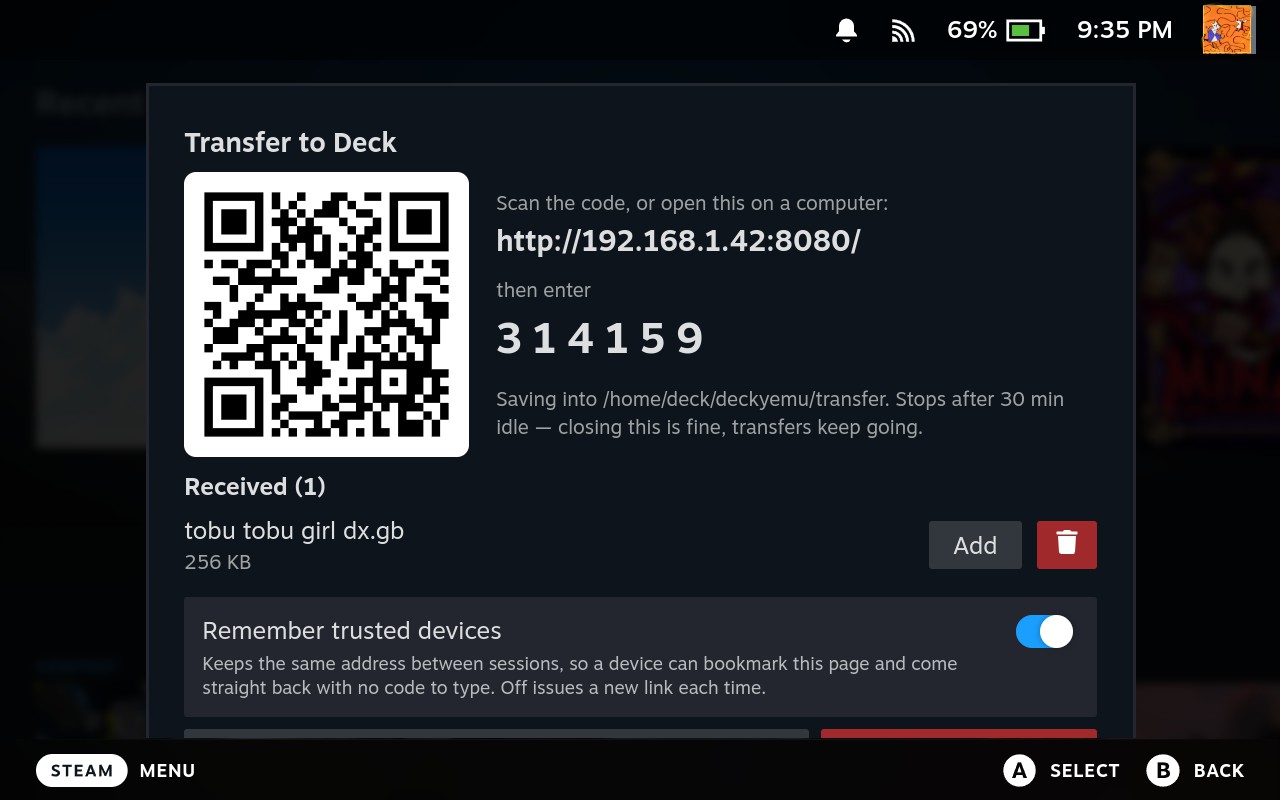
Getting a ROM onto a Deck otherwise means Desktop Mode or a shell. Press Send files from another device in the Quick Access panel and your Deck starts a small HTTP server on your local network, with two ways in:
- A QR code, for anything with a camera. It carries the full token URL, so scanning takes you straight to the upload page.
- A short address and a six-digit code, for anything with a keyboard. Desktops can't scan, and you're not going to type a 22-character token.
Your files land in ~/deckyemu/transfer — an inbox of its own, since uploads
arrive unsorted and of unknown system. Each one gets an Add button that
drops straight into the add flow with the name and artwork already worked out.
Adding a game moves its ROM out of the inbox and into roms/<system>/, which is
the first moment anything knows what the file was. So the inbox empties itself
as you use it. See where a ROM ends up.
One kind of file isn't a ROM. A
.deckyemu.jsonemulator definition gets an Import button instead. That's how you set up an emulator this plugin doesn't ship — see emulators this plugin does not ship.
Reading the dialog
The dialog gives its height to the list. With a transfer running or files waiting, the QR square folds to one line — the address and then the code, with QR code opening the square back up for a second device. Several files arriving report as one line and one bar, with Details for the per-file rows and their Cancel buttons.
Done is pinned to the bottom and the received list is the only thing that scrolls, so finishing never means scrolling past it. With nothing arriving and nothing waiting the code stays open, which is when you opened the dialog to scan it anyway.
The list is the folder, not a record of what arrived while the dialog was open, so a file you sent last week is still there to act on.
Anything you decide against gets a delete button next to its action — a ROM you thought better of, a BIOS for an emulator you removed, a definition that was refused. That's the only way to clear the inbox from Game Mode, and it asks first, naming the size.
A disc set is one row. A CD rip is a .cue and a dozen .bin files, and a
multi-disc game adds an .m3u over the top — all of it one game, and none of the
tracks worth adding on their own. So the sheet gets the row and everything it
names folds into it. The row reports the size of the whole set and how many
files it speaks for, a list button opens their names, and Add and delete
both act on all of it.
Note: a track whose
.cuehasn't arrived stays a row of its own, because that one is a game that can't be assembled and you need to see it.
A disc of a multi-disc game asks before it adds. Press Add on one and a question names every disc found beside it, in playlist order, offering One game or This disc only. The file browser asks the same question, so a set is never merged without being put to you.
A disc of a game you've already added says so. Its row reads disc 2 of ‹game› with an Add to game button, because the filename is enough to know where it belongs. Pressing it puts the disc into that game — same Steam entry, playlist extended, shortcut repointed. Its own entry adds it separately instead. You won't be offered this when two added games would both match. See multi-disc games.
My transfer stopped partway
Arriving files show a progress bar of bytes received against the declared total, and you can cancel each one. That status also appears in the Quick Access panel, so dismissing the dialog doesn't hide a transfer that's still running.
Cancelling stops the transfer but keeps what arrived. The sending page is told to stop rather than retry, and its row gets a Resume button that carries on from where it was cancelled instead of starting over — which matters for a game of several gigabytes on a slow connection. A transfer that gave up on a dead connection gets the same button.
Once you've reloaded the page the button is gone, but choosing the same file again carries on just the same.
Either way, only while the transfer dialog stays open on your Deck. Closing it lets the server stop, and a cancelled transfer's half-file gets cleared the next time the server starts.
Interrupted transfers carry on where they left off. Wifi dropping, a phone locking its screen or a tab left in the background all end an upload partway. Your Deck keeps what it has and the sending page reconnects and sends the rest, so a 4 GB ROM that stopped at 90% resumes at 90%.
A connection that stops carrying anything without closing — which looks like a frozen progress bar — is given up after twenty seconds and picked up the same way. Files go one at a time rather than all at once, and the page asks your sending device to stay awake while they're moving.
Anything half-sent that nobody is sending — cancelled, or interrupted and not picked up again — is listed under Stopped, with how far it got. Its bin deletes what arrived, after asking. Sending that file again then starts from the beginning.
Keep the page open. A tab that's closed can't come back by itself, though your browser will ask before letting you. The panel says Paused rather than Waiting while a transfer is between attempts.
The same server runs backwards
Two things travel the other way over it, and you reach both from the plugin rather than from the upload page:
Each starts the server if it isn't already running, and one started for either of them accepts no files. Being shown a report or a backup shouldn't also hand somebody a writable folder on your Deck, and they'd have no way of telling they'd been given one.
Keeping the same address
By default the port, token and code all rotate every session, so nothing outlives a transfer and a saved link is worthless.
Set Trusted devices to keep the address and it reuses the port and token instead, so a device that bookmarked the link lands on the upload page with nothing to type.
It's a Change button behind a confirmation rather than a switch, because changing it reissues the link — not something a press meant for the button below it should do.
It never interrupts a transfer. Reissuing means restarting the server, so with a file arriving the change is saved and takes effect the next time receiving starts.
It's off by default because it changes what the link is: a bookmark becomes a standing credential that works whenever the server runs. That's the right trade for your own laptop and the wrong one for a house guest. Reset link is therefore all or nothing, and is refused while a transfer is running.
Since this listens on the network
- A random token is required in every path, carried by the QR code. Without it every request is refused, so a port scan finds nothing usable.
- The root path is the one exception, serving the code form. Wrong codes are counted and none is accepted after eight, which bounds anyone already on your network to roughly 1-in-125,000 over the server's 30-minute life. The code rotates every session even when the address is remembered.
- Writes are confined to the chosen folder. Path segments are decoded individually and reduced to a basename, so an encoded slash can't climb out.
- It stops when you close the dialog, after 30 minutes idle, and when the plugin unloads. A transfer in progress survives a dismissed dialog and stops the server once idle.
- It's plain HTTP on a local network. Fine for moving ROMs around a house, not something to expose beyond one.
Fetching a definition by link
The transfer page has a box for an address, under the file picker. Paste a link and press Fetch. Your Deck downloads it into the same folder your files land in, and it appears with an Import button like anything else you sent. Shortened links work — what it redirects to is what counts.
It's there because the page is open on a device with a keyboard, which your Deck isn't.
Two things it won't do:
- It downloads, it doesn't import. You still see what the definition installs and where it may write, and you still confirm it on your Deck.
- It takes definitions only. What arrives is capped at a definition's size and then has to be one, or it's deleted. A box that fetched anything would be a downloader for games, which this plugin is not.
Unpacking a zip
Pick the zip the way you'd pick any game — Add a game, then the file browser
or the Add button in the received list. The panel offers Unpack this zip,
in the same place a .pkg offers to unpack itself.
You get it beside the usual core choice, not instead of it, because both can
be right. RetroArch reads a zip directly, so a zipped SNES ROM can just be
added. Standalone emulators mostly can't: Xenia refuses one outright, and a zip
holding a .cue and its .bin files has to come apart before any of it works.
Pressing it extracts the contents flat into your transfer folder, next to
the zip, ignoring whatever folders the archive named them in. Xbox Live Arcade
titles are the reason — they arrive as a single file buried under
58410954/000D0000/, and the rest of the plugin only acts on files sitting
directly in the transfer folder.
If exactly one file comes out, the panel switches straight to it so you carry on adding the game rather than going back to a list.
A single file with no extension is named after the zip. An XBLA container is
called something like DA78E477AA5E31A7D01AE8F84109FD4BF89E49E858, which is no
use in a list and no use to the artwork search either. A file that already has
an extension keeps its own name, since that's one somebody chose.
A few limits:
- Only zips already in your transfer folder. That's the one folder this plugin writes an archive's contents into, so a zip on an SD card is left alone and you won't be offered the button.
- Nothing is overwritten. If a name is already taken, or two files inside the zip would come out with the same name, the whole thing is refused and says why. These arrived over your network and there's no undo in Game Mode.
- Only
.zip. Nothing on a stock SteamOS reads.7zor.rar, so you aren't offered the button rather than having it fail after you press it.
The zip is deleted once its contents are out, the same way importing a definition consumes it and adding a ROM files it under its system. Your transfer folder is a waypoint: everything that uses a file takes it out of there. Only after a clean extraction, though — if anything goes wrong the zip is still sitting where it was.
Unpacking a Switch .nsz
An .nsz is a Switch package compressed to save space, and Ryujinx can't open
one.
Pick it in the add panel and Unpack this .nsz is the only thing offered —
the rows for adding it wait until it's an .nsp. Pressing it writes the .nsp
into your transfer folder with a progress bar, then the panel switches to it and
adding carries on as usual.
It takes seconds rather than minutes: a 577 MB .nsz became its 1.34 GB .nsp
in under five seconds on a Deck. No keys are involved. An .nsz carries what it
needs to be put back together, and every part is checked against the original
before the .nsz is deleted, so what you get is the file it was made from, bit
for bit.
It needs room for the
.nsp. With room for both files, your.nszis left untouched until the.nsphas checked out. With only room for the.nsp, the.nszis used up as it's read, so the peak is the.nspalone — and if that unpack then fails, you have to send the.nszagain.
Updates and DLC sent as .nsz need no step of their own. They're unpacked as
they install. See Switch updates and DLC.
Where a ROM ends up
Whether your ROM gets moved when you add it, and whether it gets deleted when you remove the game, both depend on one thing: where the file was when you picked it.
A file in the transfer/ inbox is moved into ~/deckyemu/roms/<system>/.
The system comes from the core or emulator you chose, which is the first point
at which anything can know it — .iso alone is GameCube, PS2, PSP or Xbox. The
move happens before the launcher is written, so nothing is ever left pointing at
the old path.
It moves the whole game or none of it. Companion files are found by name
(Game.cue next to Game.bin) and by reading playlists, since a .cue, .m3u
or .gdi names files that don't share its name. If a disc a playlist expects is
missing, nothing moves — an untidy inbox beats a game that won't start.
Send the same ROM twice and the second copy is recognised as identical and discarded, with your game pointed at the one already filed. A different dump of the same name is never overwritten; it stays in the inbox and the row says so.
A file anywhere else is left exactly where it is. An SD card, your home
folder, a library some other tool laid out, even a subfolder inside transfer/
— the launcher points at it in place and nothing moves.
That decides what removing a game can delete:
| Where the ROM is | Moved when added | Deleted when the game is removed |
|---|---|---|
transfer/ |
Yes, into roms/<system>/ |
Yes |
roms/<system>/ |
Already filed | Yes |
roms/ itself |
No | No |
| SD card, home, anywhere else | No | No |
Only ROMs sitting one level under ~/deckyemu/roms count as the plugin's, which
is exactly the set it put there. Anything else is reported as not its to delete
rather than quietly skipped. See also
removing everything.